- MCPE is today's Bedrock Edition on mobile, so Actions & Stuff works on Android and iOS through the Marketplace.
- Every action, including flips, rolls and sitting, can be performed with touch controls.
- Render distance, particles and 3D tools are the three biggest performance levers.
- Heat and background apps cost more frames on phones than any single graphics setting.
"MCPE", short for Minecraft Pocket Edition, is the name many players still use for Minecraft on phones and tablets. The Pocket Edition branding was retired years ago. What runs on your phone today is Minecraft Bedrock Edition, the same version that runs on Windows, Xbox, PlayStation and Switch. That's why Actions & Stuff works on mobile at all, and why your purchase follows you between devices.
Phones bring their own challenges, though: touch controls, limited memory, heat and battery. This guide covers installing the pack on Android and iOS, performing every action with touch controls, and a settings routine that keeps the animations smooth.
Installing on Android and iOS
The steps are almost the same on both systems:
- Install or update Minecraft from Google Play or the App Store. An up-to-date game matters, because each version of the pack targets the current game drop.
- Sign in with your Microsoft account from Minecraft's main menu.
- Open the Marketplace and search for "Actions & Stuff". Check that the creator is Oreville Studios.
- Buy or download it. If you already own it from another device, it shows as owned. Just download.
- Apply it to a world. Edit the world, open Resource Packs, activate Actions & Stuff and keep it at the top.
- Open the pack's settings and pick a starting profile (see below).
There's no APK, .mcpack file or separate app to install. If anything asks you to download one, it isn't the official pack. Our APK guide explains why.
Touch controls for every action
The pack's actions react to things you already do in the game, so they all work on touchscreens. Some need a little technique.
Mid-air flip
Jump, then tap sneak while you're in the air. With the default touch layout, the sneak button is the centre of the movement pad (or a dedicated button, depending on your layout). Timing is easier from a sprint jump, which gives you more airtime.
Roll landing
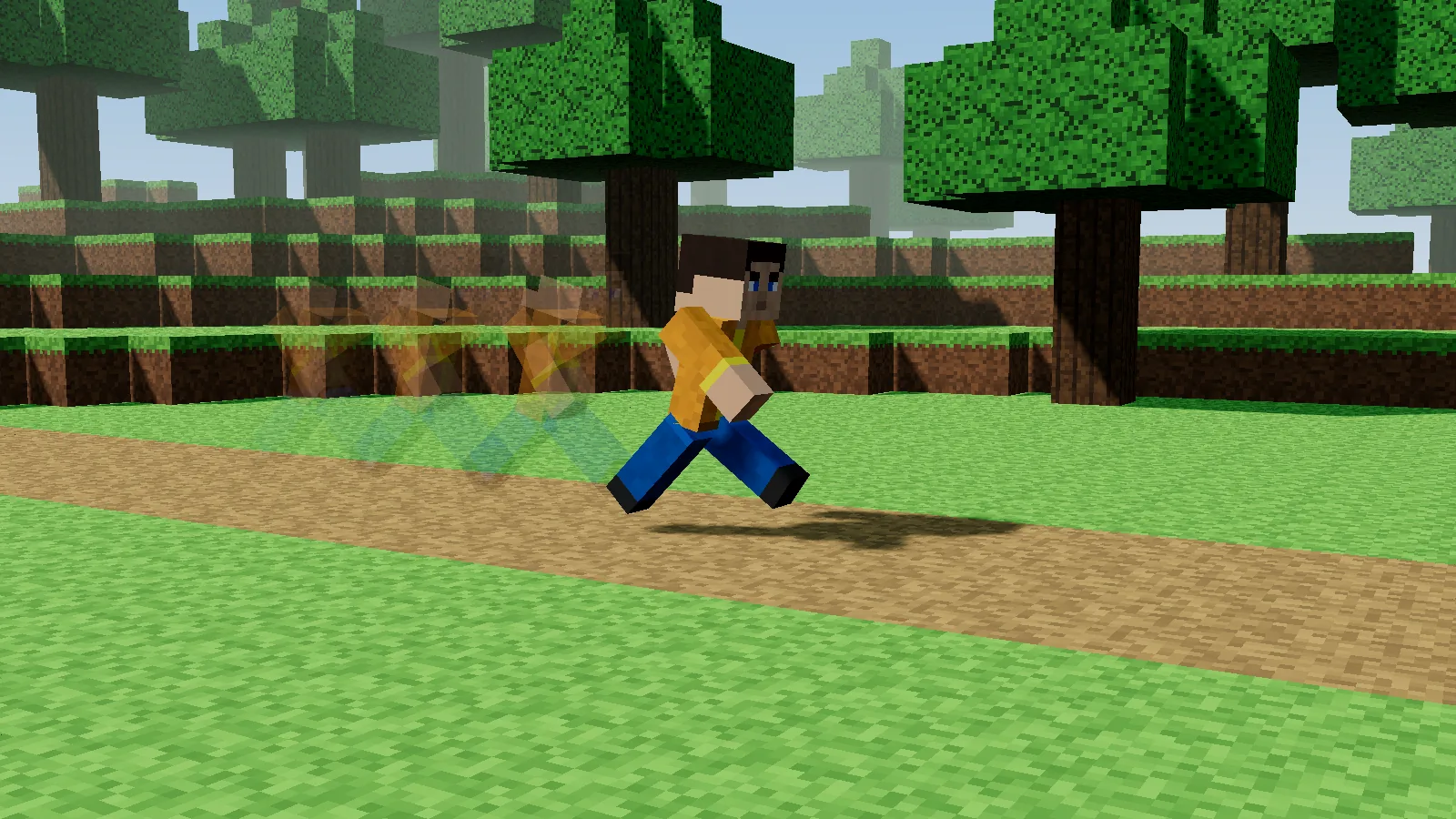
Sprint, by double-tapping forward or using the sprint button, then run off a drop of four or more blocks. Keep sprinting as you land. If you let go of sprint mid-air, you'll get the standard or superhero landing instead.
Superhero landing
Fall from a big height without sprinting. The dust ring appears as you hit the ground. Remember that fall damage is still vanilla, so the animation won't save you from a fatal drop.
Sit anywhere
Sneak and look down for about five seconds. On touch, toggle sneak on, then drag your view downward and hold still. Moving the camera or walking cancels the pose.
Balancing
Walk along the top of a fence, wall, chain or end rod. The balance pose blends in automatically. Slow, steady movement on the joystick looks best.
Directional swimming
Swim in any direction and the stroke follows your movement. If you have Dolphin's Grace, moving fast in water triggers a quicker, sleeker swim.
Controller layout tips
- Split controls (separate jump and sneak buttons) make flips much easier than the D-pad layout.
- Increase button size in Settings → Touch if you keep missing the sneak tap in mid-air.
- Turn on "toggle sneak", if your layout offers it, for sitting. It saves holding a finger down for five seconds.
Using a game controller on mobile
Android and iOS both support Bluetooth controllers, and Bedrock recognises the common ones, including Xbox and PlayStation pads and many third-party models. A controller makes the timing-based actions much easier:
- Flips: jump with the face button, then click the sneak button (usually the right stick press) while airborne. With physical buttons the timing becomes second nature.
- Rolls: hold sprint (left stick press or a mapped button) through the whole jump and landing, without a thumb leaving the screen at the wrong moment.
- Sitting: toggle sneak, push the right stick down to look at your feet, and let go. The pose triggers after about five seconds.
If you play on a tablet propped on a stand, a controller also keeps your hands off the screen, which helps with heat and smudges. Check Minecraft's controller settings to remap buttons if the defaults feel awkward.
Notes for iPhone and iPad
Most of this guide applies equally to iOS, but a few details differ.
Purchases go through Apple. Minecoins bought on iOS are charged through the App Store, and Apple's refund process applies. The add-on itself is still tied to your Microsoft account, so it's available on your other Bedrock devices too.
iPads handle the pack well. Recent iPads have plenty of graphics headroom and usually run Profile C comfortably. Older iPads benefit from Profile B.
Low Power Mode and Screen Time. Low Power Mode lowers performance noticeably, and Screen Time limits can close the game mid-session for younger players. Check both if a child reports the game "stopping by itself".
Storage on 64 GB devices. iOS removes app caches when storage gets tight, which can make Minecraft download resources again. Keep a few gigabytes free so the pack doesn't need to download repeatedly.
A ten-minute first session
Once the pack is installed, this short routine shows off its systems and confirms everything works on your device.
- Create a new world in Creative mode with the pack at the top of the resource list.
- Look at your hands. Switch between a sword, a pickaxe and a bow. They should be 3D models. If they're flat, check whether 3D tools are switched off in the pack settings.
- Find a hill. Sprint off a four-block drop for a roll landing, then fall without sprinting for the superhero landing.
- Build a fence line and walk along the top to see the balance pose.
- Jump and tap sneak in mid-air until you land a clean flip.
- Sit down. Sneak, look at your feet and wait five seconds.
- Spawn some mobs. Try a few spawn eggs, then rename one with a name tag such as "Cherry" to see a variant.
- Check performance. Fly around at your normal render distance for a minute. If frames dip, apply the profile that matches your device.
If every step works, you're set. If one doesn't, the list of common problems below should point you to the cause.
Performance: what actually matters on a phone
The pack adds animated geometry, 3D items and extra particles. On a recent phone the difference is small. On older or budget devices you'll want to tune things. In our testing, these are the factors that matter, in order of impact.
1. Render distance
Nothing affects mobile performance more. Every extra chunk of render distance means more blocks, more entities and therefore more animated mobs on screen. If frames drop, lower render distance by two to four chunks before changing anything else.
2. Particles
Rain particles, dust rings, candle flames and confetti are lovely but multiply quickly in busy scenes. Use the pack's settings menu to switch off rain particles first. Then consider lowering the game's own particle setting.
3. 3D tools and items
3D item models are one of the pack's highlights, but they add geometry to every held item and item frame. Turning 3D tools off in the pack settings is a noticeable saving in crowded builds such as item-frame storage walls.
4. Fancy graphics and smooth lighting
Vanilla's Fancy Graphics, Beautiful Skies and Smooth Lighting all cost something. On weak devices, turning Fancy Graphics off frees more performance than any single A&S option.
5. Entity count
The pack animates entities, so farms packed with animals or villagers are where frames suffer most. That isn't a bug, it's simply a lot of models to animate. Spread farms out or keep them away from your main base.
Three ready-made profiles
Use these as starting points and adjust to taste.
Profile A: Budget phone
- Render distance: 6–8 chunks
- Fancy Graphics: off
- Pack settings: rain particles off, 3D tools off
- Keep: all player actions, mob animations, variants
Profile B: Mid-range phone or tablet
- Render distance: 10–12 chunks
- Fancy Graphics: on
- Pack settings: rain particles off, 3D tools on
- Keep: everything else
Profile C: Recent flagship or iPad
- Render distance: 14 chunks or more
- Fancy Graphics and Beautiful Skies: on
- Pack settings: everything on
- Optional: Vibrant Visuals, if your device and game version support it
These are our recommendations from testing, not official requirements. Devices vary a lot even within the same price range.
Heat, battery and long sessions
Phones slow themselves down when they get warm. This thermal throttling can halve performance after twenty minutes of play, whatever pack you use. To keep frame rates steady:
- Remove thick cases during long sessions.
- Avoid charging while playing if the phone runs warm. Charging adds heat.
- Close background apps, especially video, navigation and social apps that keep running.
- Lower screen brightness a little. It reduces heat and saves battery.
- Use a cooler room, or take breaks. Even five minutes lets the processor recover.
On iPhone and iPad, Low Power Mode caps performance. Turn it off for smoother play, or leave it on deliberately for longer sessions at lower settings.
Storage and downloads
- Keep some free storage for the pack and its updates. Very full storage slows downloads and loading.
- Download updates on Wi-Fi. Marketplace updates can be large.
- If a download fails, free up space, restart Minecraft and download again from your library. The purchase is safe on your account.
Multiplayer on mobile
- Your worlds and Realms: friends who join see the pack when it's applied to the world or Realm.
- Cross-play: phone players can join PC and console players in the same world or Realm.
- Third-party servers: many push their own resource packs, which load above yours and can hide A&S animations. That's normal, and there's no client-side fix.
Common MCPE problems
The pack isn't in my resource packs. Check you're signed in to the account that owns it, open the Marketplace library and download it again.
Animations stopped after a game update. Update the pack too. The Marketplace usually does this automatically, but a restart can help.
My character moves like vanilla. Another pack is overriding the player model. Move A&S to the top, or remove skin or animation packs.
The game crashes on load. Lower render distance before loading the world, close background apps and restart the phone. If it continues, try loading the world without other add-ons to find the conflict.
Touch controls make flips hard. Switch to split controls and make the sneak button bigger.
Vibrant Visuals on mobile
The latest Actions & Stuff listing is tagged for Vibrant Visuals, Mojang's newer lighting and graphics mode for Bedrock. On phones, Vibrant Visuals is the most demanding graphics option you can turn on, and availability depends on your device and game version. If your phone supports it and handles it smoothly in vanilla, the pack will look excellent with it. If not, standard graphics with the pack's own particles and coloured lighting still give a rich look at far lower cost.
A sensible approach is to get the pack running smoothly on standard graphics first, then try Vibrant Visuals for a few minutes in a busy area. If frames drop noticeably or the phone heats up quickly, switch back. It's easy to toggle, and nothing about the pack depends on it.
Is my phone good enough?
A simple test: load a busy vanilla world at your usual settings and play for ten minutes. If vanilla stays smooth, the pack will run well with Profile B. If vanilla already stutters, start with Profile A, and consider improving vanilla performance first. The pack adds load. It can't remove it.
Bottom line
On phones and tablets, Actions & Stuff is the same full pack as on PC and console, with every action available through touch controls. The difference is in tuning. Keep render distance sensible, trim particles and 3D tools on weaker hardware, and watch out for heat. Do that, and the flips, rolls and living mobs feel just as good in your pocket.
Want to know what's still to come? See the 1.10 update guide for the features that defined the current pack, or check system requirements on the homepage.